We’ve previously introduced triggers and notifications in Tags. If you’re not familiar with how they work, take a look at our blog article: Tags: triggers and notifications.
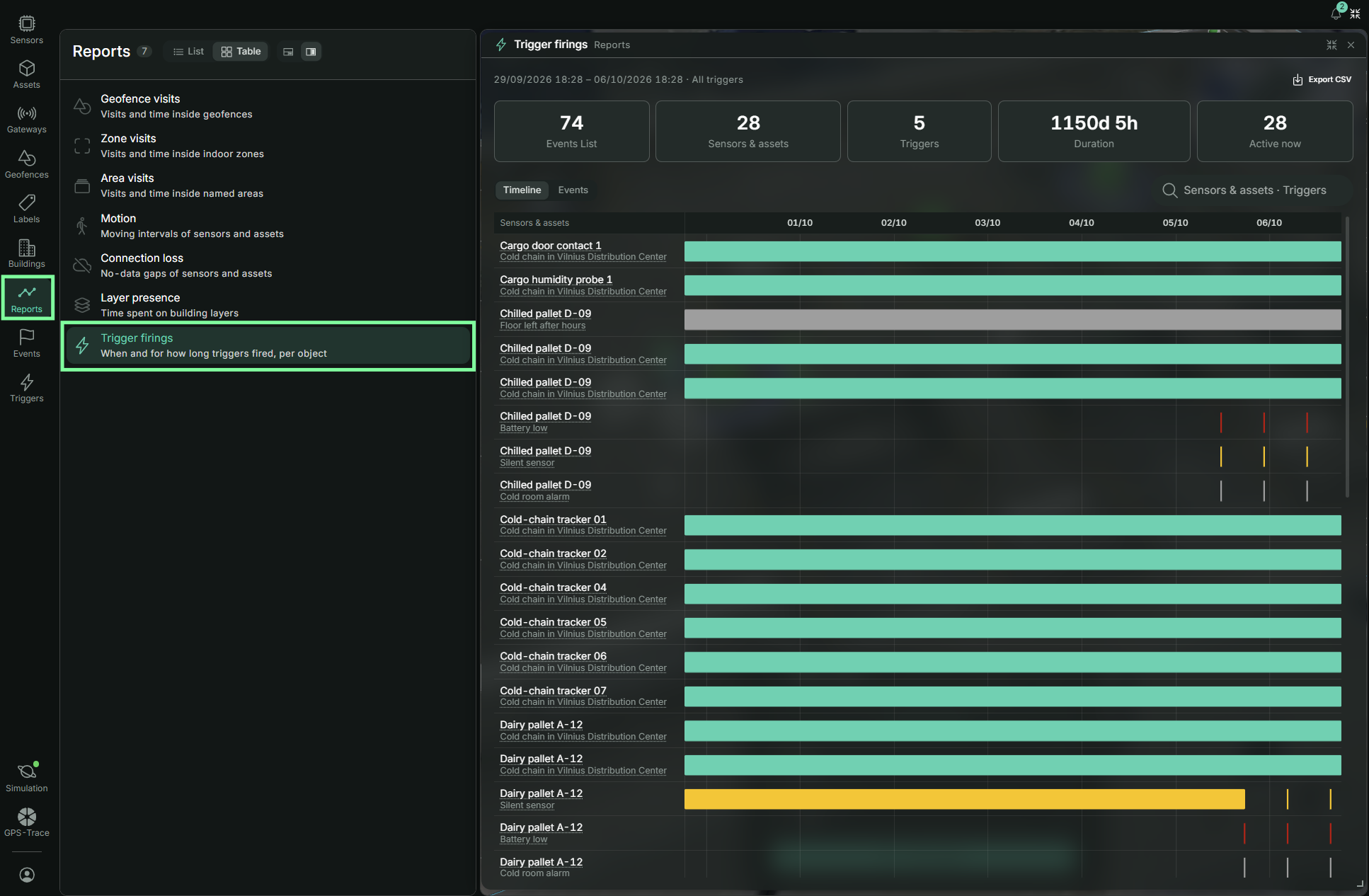
Now you can configure actions when setting up a trigger and use a new report to review when triggers fired and how long they stayed active.
Trigger actions
Actions make it easier to see which sensors or assets need attention:
Assign a label
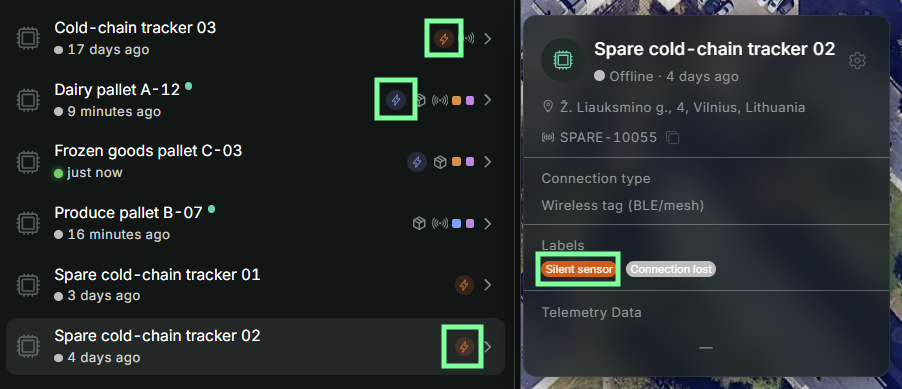
When the trigger fires, a label is automatically created and assigned to the sensor or asset, using the trigger’s name.
With this option enabled, you can use the Labels tab to keep track of sensors and assets with active triggers. They’ll also have an icon next to them in lists, so you can spot them there too.
Choose a label color
Use different colors to make trigger states easier to distinguish.
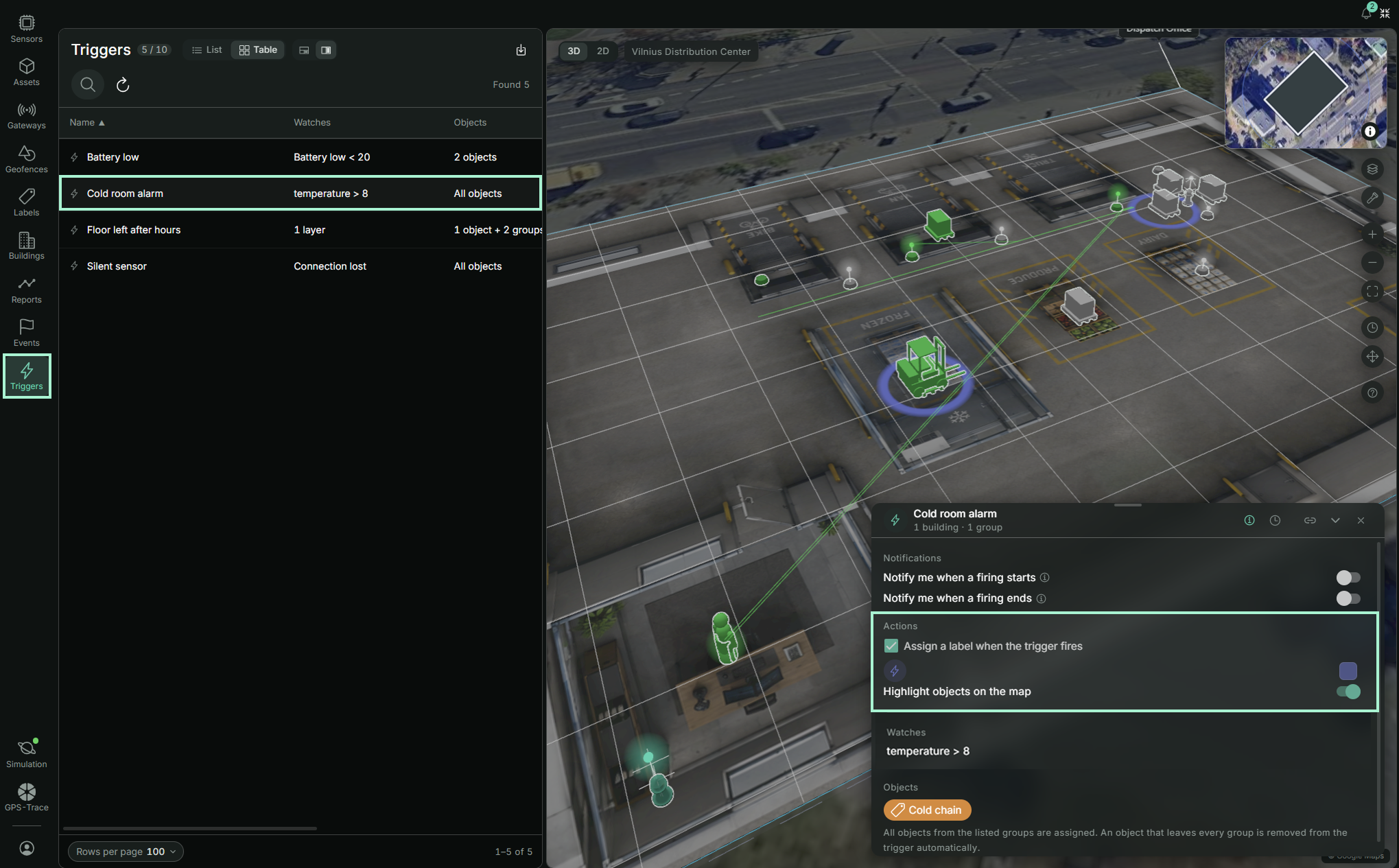
Highlight the sensor or asset on the map
When enabled, a colored ring appears around it while the trigger is active.
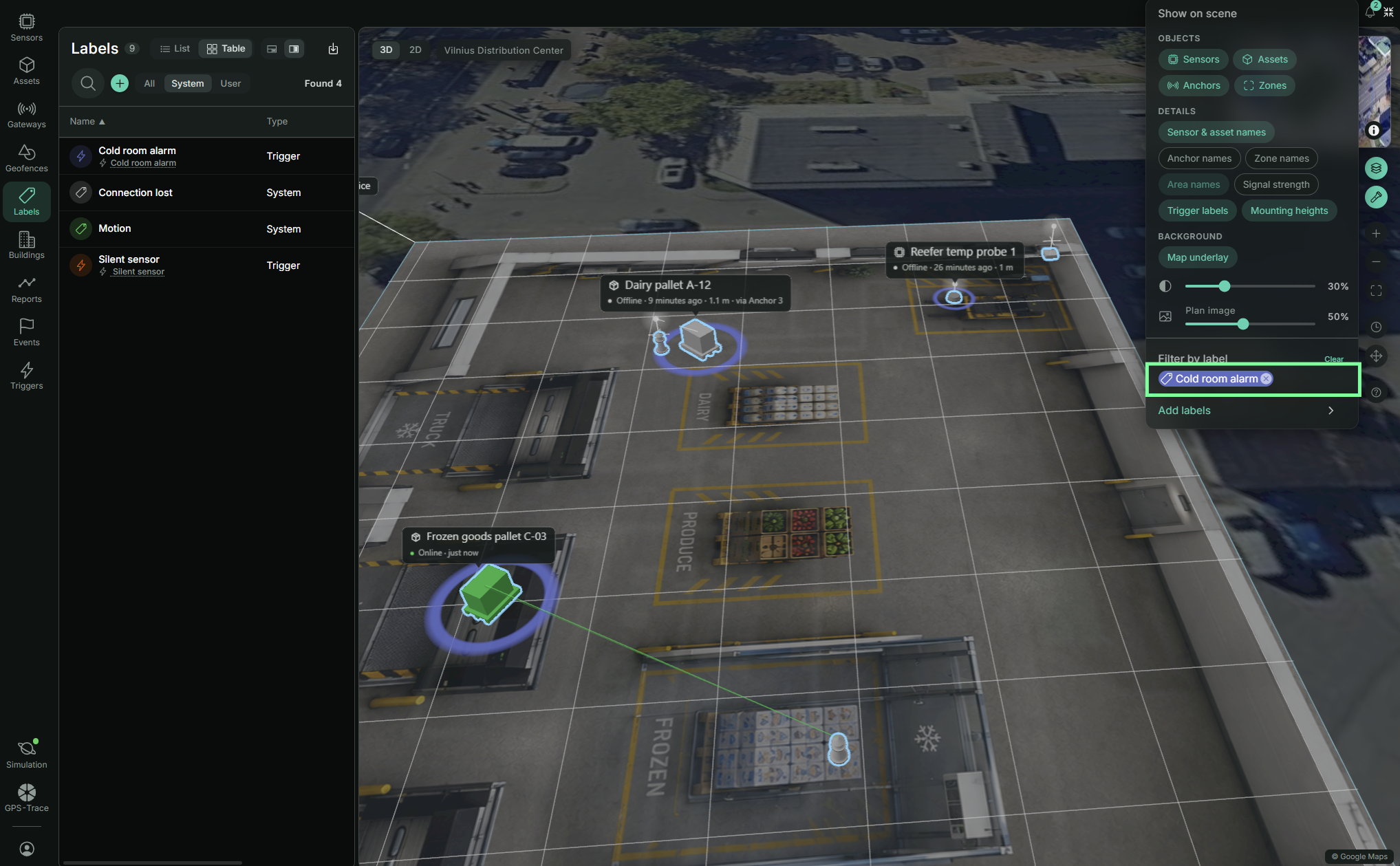
This lets you see at a glance which assets are inside a restricted zone, exceeding a speed limit, or reporting a low battery.
Trigger firings report type
The Trigger firings report shows when triggers fired and how long they remained active, per object.
For example, you can check when an asset entered a restricted zone and how long the corresponding trigger stayed active.